


Inventory
The saved record: locations and placements say where equipment belongs, and discovery alone never places it.
Locations, areas, and racks
A location (a building or property) contains areas; an area contains racks and other mounting containers. Rack height is measured in U and width can be 10 or 19 inches. A rack can have front and rear access or front access only. Areas also contain floor and cardinal wall surfaces; shelves and other surfaces can be nested where appropriate.
The Floor plan is a dimensionless top-down footprint layout. It can show floor and wall-mounted devices, shelves, racks, and equipment on top of a rack together. Shelves automatically pack multiple devices and let an administrator adjust their left-to-right order. Area coordinates are relative positions, not real measurements.
On the Locations page, an administrator can rename or delete any location; an area's heading has Edit area to rename or delete the area. In an area's Equipment view, the same goes for each rack (Edit rack), its shared shelves (listed in Edit rack), and the shelves and surfaces around the area; floors, walls, and the ceiling can be renamed. Before anything is deleted, LabRat says what goes with it: areas, racks, shelves, and how much equipment is inside. Equipment is never deleted. It is unplaced and stays in inventory with its ports and cables, ready to place again. Something with saved attributes, or a location that still has networks, cannot be deleted here.
An inventory device can be unplaced or have one active placement. Rack placement records its container, bottom U, height, and front, rear, or full-depth position. Full-depth equipment appears in both elevations. Network-port facing is saved independently from placement. An area's Equipment view lets administrators edit rack details, move equipment between racks, or unplace it while retaining its inventory identity and discovery evidence. Shared one-U rack shelves hold several smaller devices on one rack face.
Arrange mode, from any rack's toolbar, lets an administrator drag rack-mounted equipment to new units, within a rack or onto another rack in the same area, or move it with the arrow keys. Dropping onto one device of the same height swaps the two; other overlaps are refused with a reason. Equipment on top of a rack reorders left to right. Nothing is saved until Save arrangement, which applies every move together.
Discovery's right panel and the Equipment view's drawer slide between one panel at a time. Select equipment to view details, then open placement or editing controls. Save and Cancel return to the previous panel. On phone-sized screens, the editor takes over the screen.
Identity stays separate from observation
A discovered device is a source-scoped observation. In Discovery, the default placement choice creates a new inventory device. Choose “Use an existing device” to link the observation to an inventory record. Linking does not delete or combine inventory records. An observation already linked to a device keeps that identity when moved. Two distinct observations from one source cannot share one inventory identity. Similar names or MAC addresses do not automatically merge records. Equipment without an adapter, such as a UPS, can be created manually from inventory views.
Clients become inventory only when you say so
Discovery's Clients view lists every wired and Wi-Fi endpoint UniFi reports, with its address and the switch port or access point it connects through. Search narrows the list, the toolbar filters by VMs and containers, Wi-Fi, wired, unplaced, or not connected, and each column header sorts.
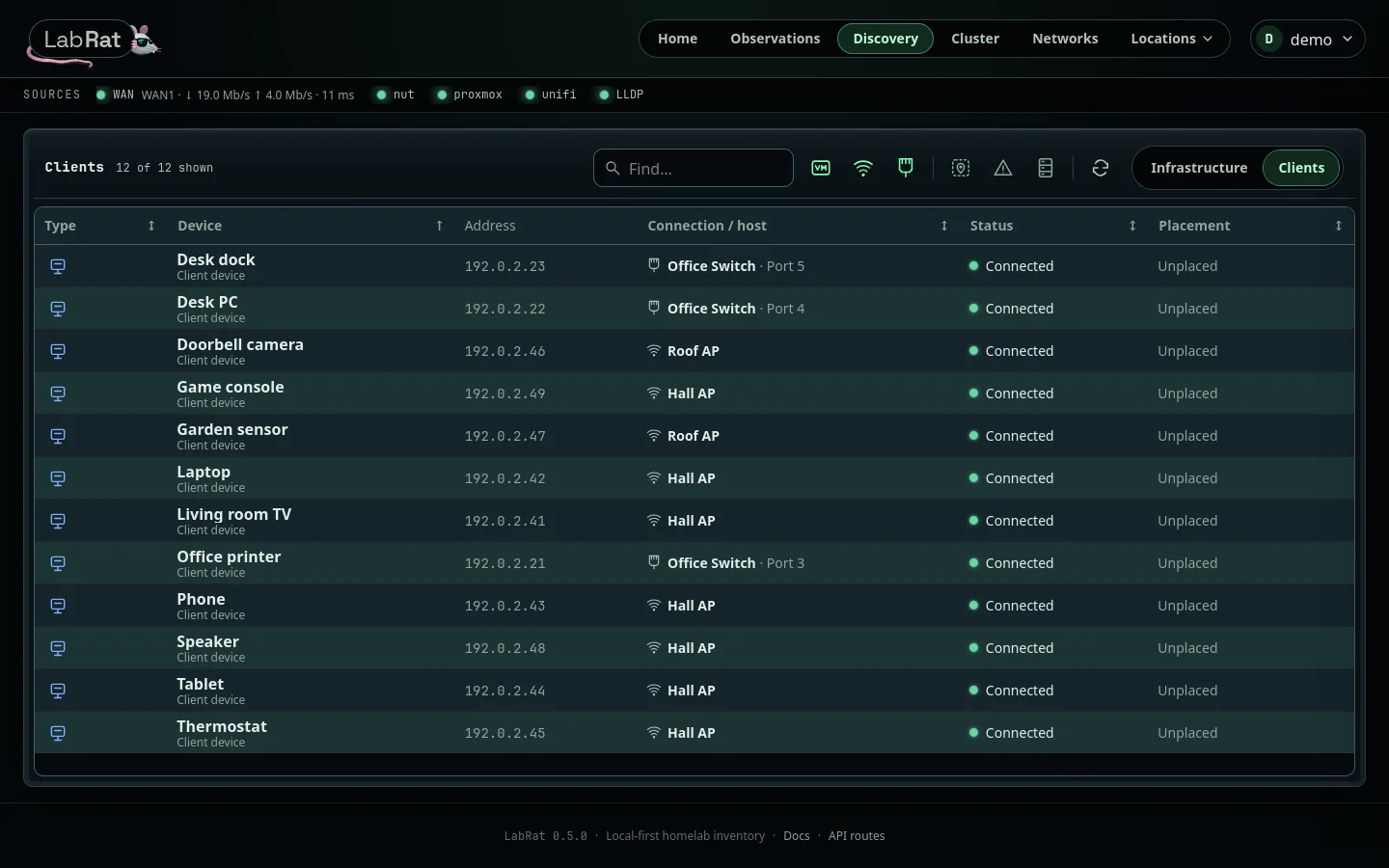
Select a client to open its details. From there you can add it to inventory without placing it, give it your own name, or place it in an area like any other equipment. A later scan never renames or moves it, and a Wi-Fi association is never drawn as a cable.
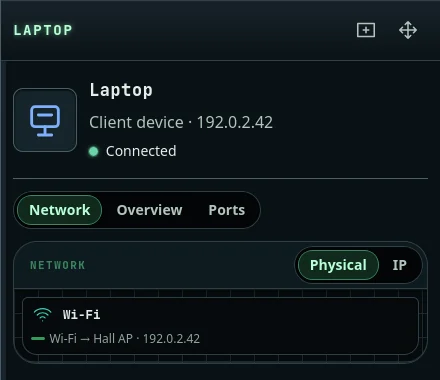
Device details show each kind of link
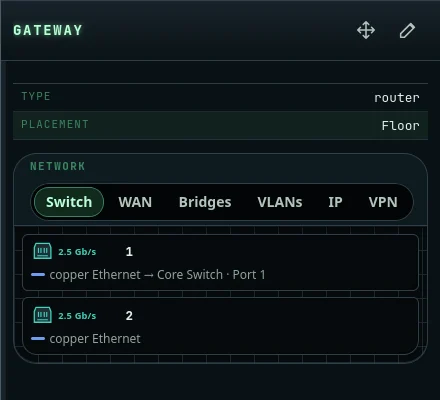
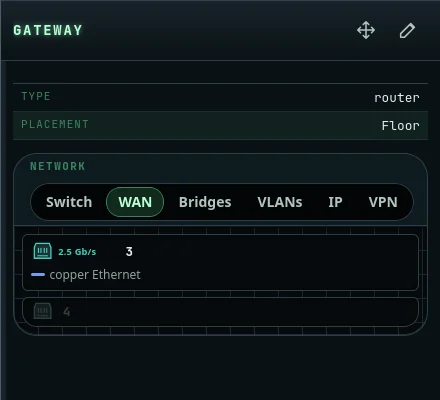
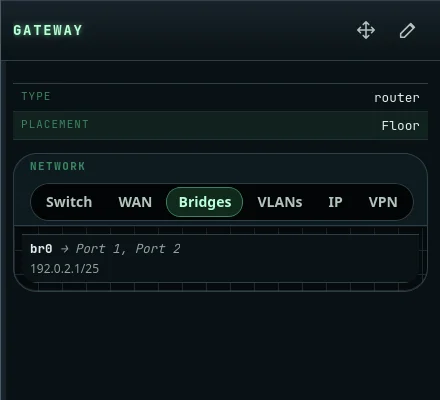
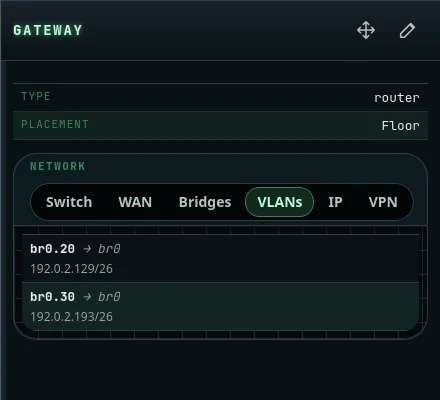
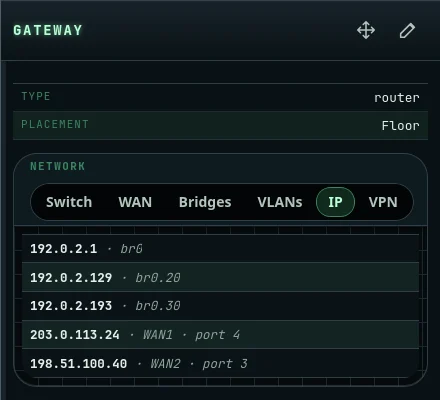
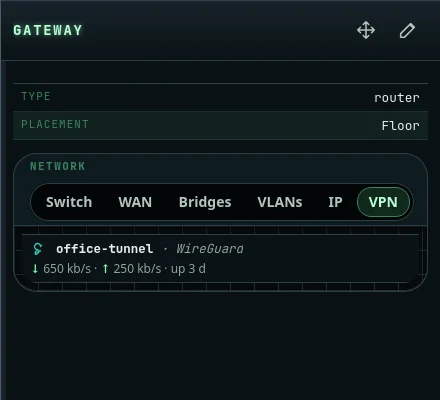
Select any placed device to open its details drawer. Its Network box has a tab for each kind of link the device reports, and leaves out tabs with nothing in them. A gateway splits its ports into Switch and WAN, then lists Bridges, VLANs, every IP address with the interface it sits on, and its VPN tunnels with live traffic. Each port shows its speed, cable medium, and what it connects to.
Links need evidence
Discovery and the Equipment view show source-observed confirmed, inferred, and ambiguous direct links with their evidence and confidence. Inferred links are trusted by default; ambiguous links remain tentative. These observations do not replace canonical interface links, and changing a physical position does not rewrite network cabling.
The Equipment view draws each cable from its actual port lamps, including equipment on rack tops, shelves, and the floor. A NUT server's USB link to the UPS it reads is drawn as its own dash-dot line; USB is not a network cable and is never counted as one.
History is append-only
Meaningful inventory writes and collector changes add audit events in the same database transaction. Audit details contain selected context, not API tokens, passwords, or raw controller responses.